¶ How to Configure an IPS in pfSense Using Snort
- Login to pfSense

- In the top navigation pane, select Services

- From the Services drop-down, select Snort
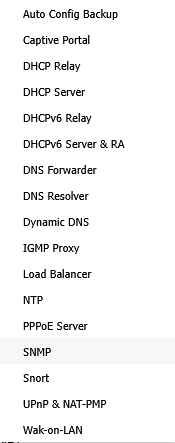
- This brings you to the Snort Configuration page
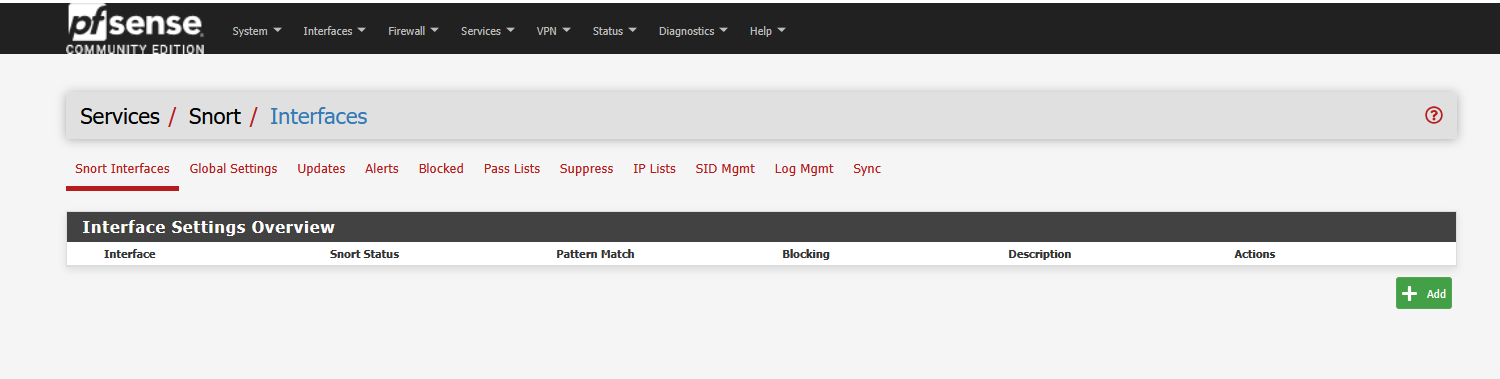
- Click on Global Settings

- Check Enable Snort VRT and enter your Snort Oinkmaster Code

- Check Enable Snort GPLv2

- Under Emerging Threats (ET) Rules, check Enable ET Open

- Under Sourcefire OpenAPPID Detectors, check both checkboxes

- Configure Rule Update Settings as desired
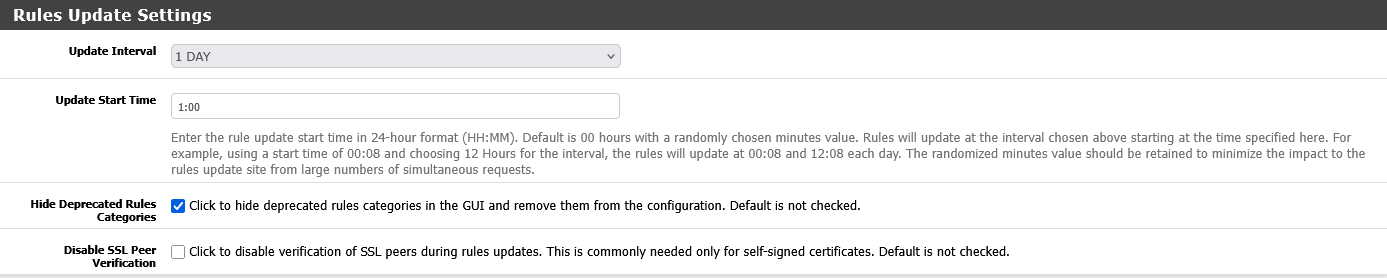
- Configure General Settings as desired

- Click Save at the bottom of the page

- At the top of the page, select Snort Interfaces

- On the Snort Interfaces page, click Add (bottom left corner)
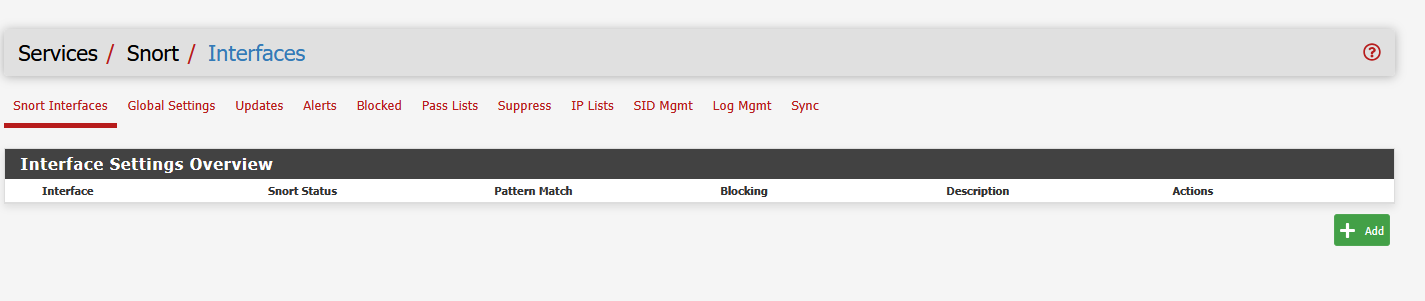
- On the Edit Interface page, check Enable Interface for your chosen interface

- Configure Alert Settings as desired
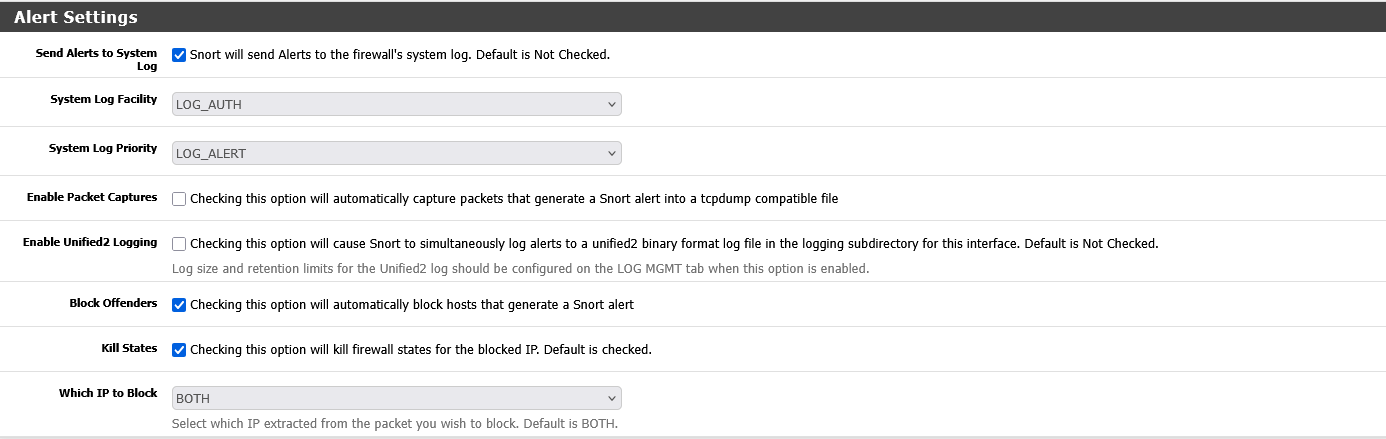
- Scroll to the bottom of the page and click Save

- Back on the Interfaces page, click the Play button to start Snort on the interface